
 Canada (English)
 Colombia
 Caribbean and Puerto Rico
 Ecuador
 India
India
 Indonesia
 Ireland
 Malaysia
 Mexico
 Panama
 Peru
Peru
 Philippines
 Singapore
 South Africa
 Sri Lanka
 Thailand
 United Kingdom
 United States
 AcumatiCares

Introduction
Empowering your field teams with real-time data access is crucial for maintaining operational efficiency and supporting scalable growth. The Acumatica Mobile Framework offers an incredibly approachable way to tailor your mobile experience to your exact business needs. You do not need to learn how to program for iOS or Android to make meaningful changes.
Instead, you can use the Customization Project Editor within our cloud-based ERP solution to modify the mobile interface with minimal code. This guide explores how to modify the display of specific fields within a Generic Inquiry on the mobile app, ensuring your team sees the exact data they need to make faster, smarter decisions.
What is Acumatica Mobile Framework
Acumatica’s Mobile Framework is an amazingly easy tool to work with. You do not need to learn how to program for IOS or Android. By using the Customization Project Editor within Acumatica, we can customize the mobile interface with very little code. Here, we will look at how to modify the display of certain fields in a Generic Inquiry on the Mobile app.
Empowering Your Team Without Code
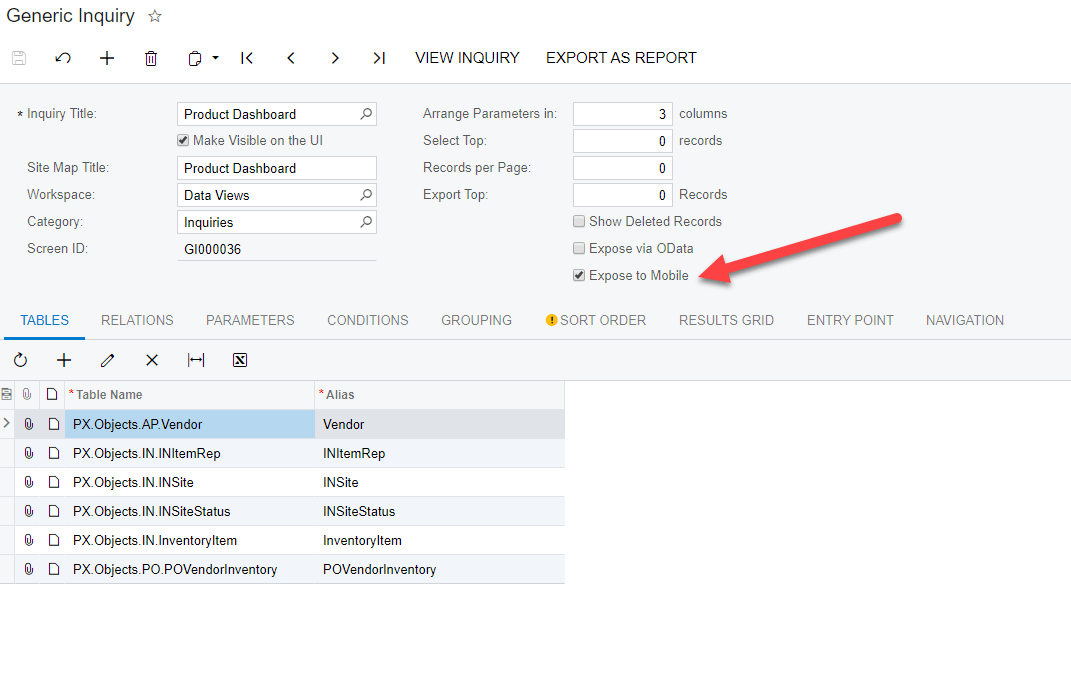
We can easily add generic inquiries to the mobile app in Acumatica, by simply clicking on the Expose to Mobile check box when creating the GI.
Desktop Versus Mobile Views
However, when we compare this screen on the desktop with what we see on the mobile app, you’ll notice a few issues. First, the mobile app will automatically render the Item and Vendor with the descriptions instead of the code (CD). So, we see the Item Description field twice. In addition to that, our Safety Stock field which is a calculated field in the GI appears to be editable.
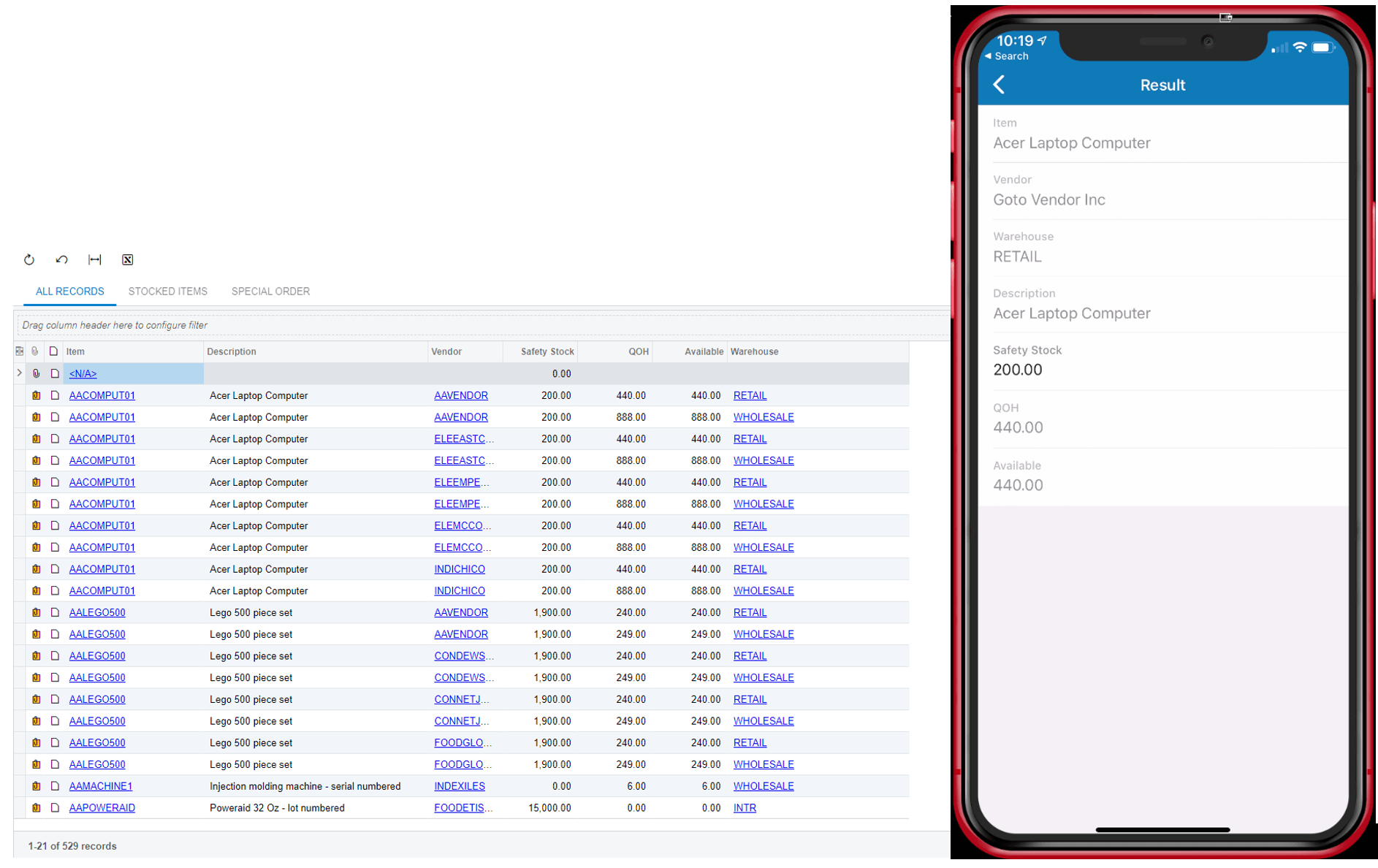
To correct these display issues, we will create a customization project to add a new screen to display the generic inquiry on our Mobile Application.
Step-by-Step Customization Guide
Modifying the interface requires only a few straightforward steps within your ERP solution. Follow this process to ensure your mobile layout accurately reflects your inventory codes and disables uneditable fields.
Creating a Customization Project
First, create a customization project. In the Customization Project Editor in Acumatica, under Mobile Application select Customize > Add New Screen. In the dialog box that appears, select the Screen ID which corresponds to the Generic Inquiry you wish to display.

Adjusting Fields and Container Commands
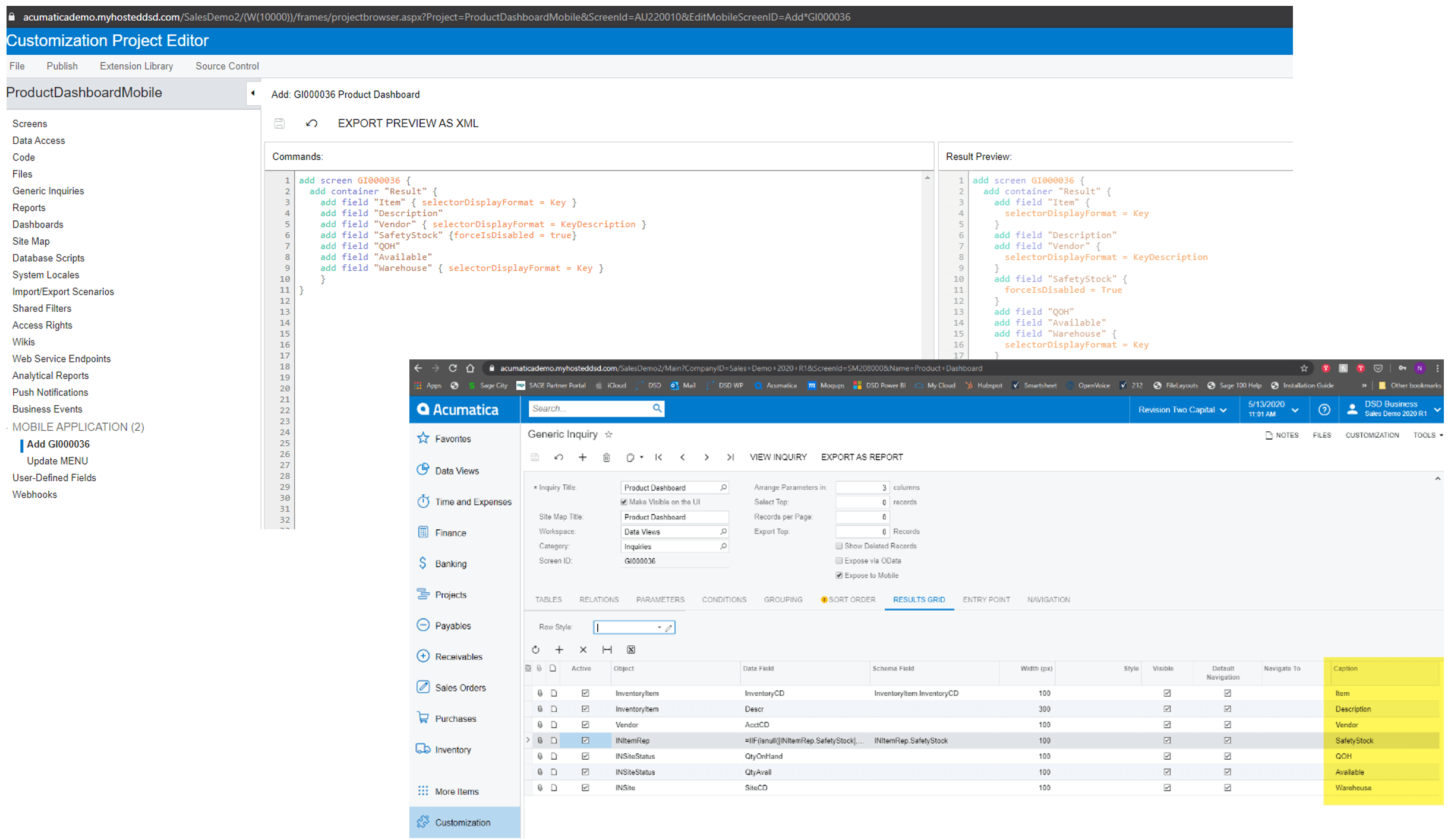
Once you have added the new screen, you must define how the data containers and fields behave. Under Commands, add the container and fields as seen below. These field names will correspond to the caption of the column in the generic inquiry.
I’ve set the selectorDisplayFormat on the Item and Warehouse to key to display the key value (our code) instead of the description. I’ve also set the Vendor to display KeyDescription which will give me a combination of both Key and Description and I’ve set the forceIsDisabled for the Safety Stock field to true so that field will be disabled.
Updating the Main Menu
With the data fields properly configured, you must make the new screen accessible to your users. Navigate back to the Mobile Application in the Customization Project Editor select Customize > Update Main Menu.
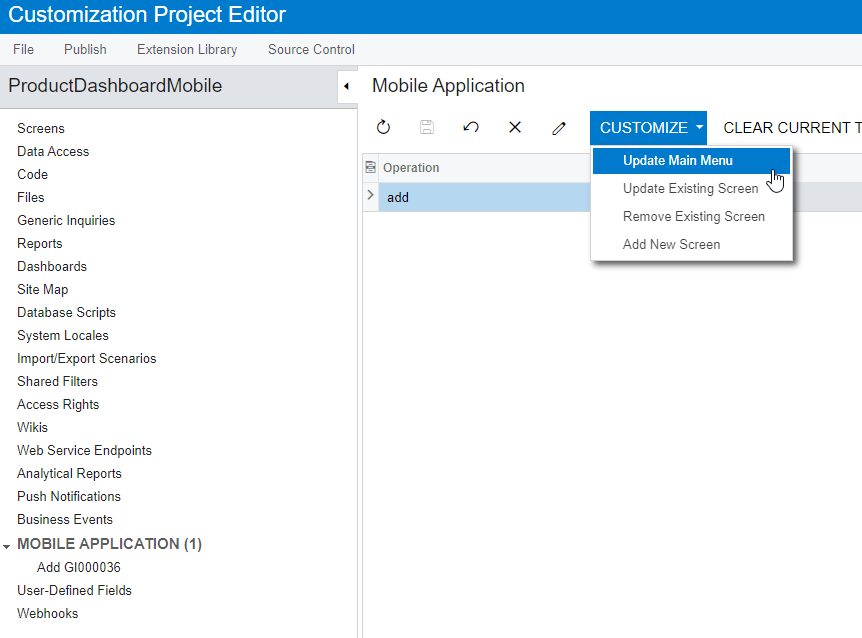
Next we will add some simple code to add this item to the menu.
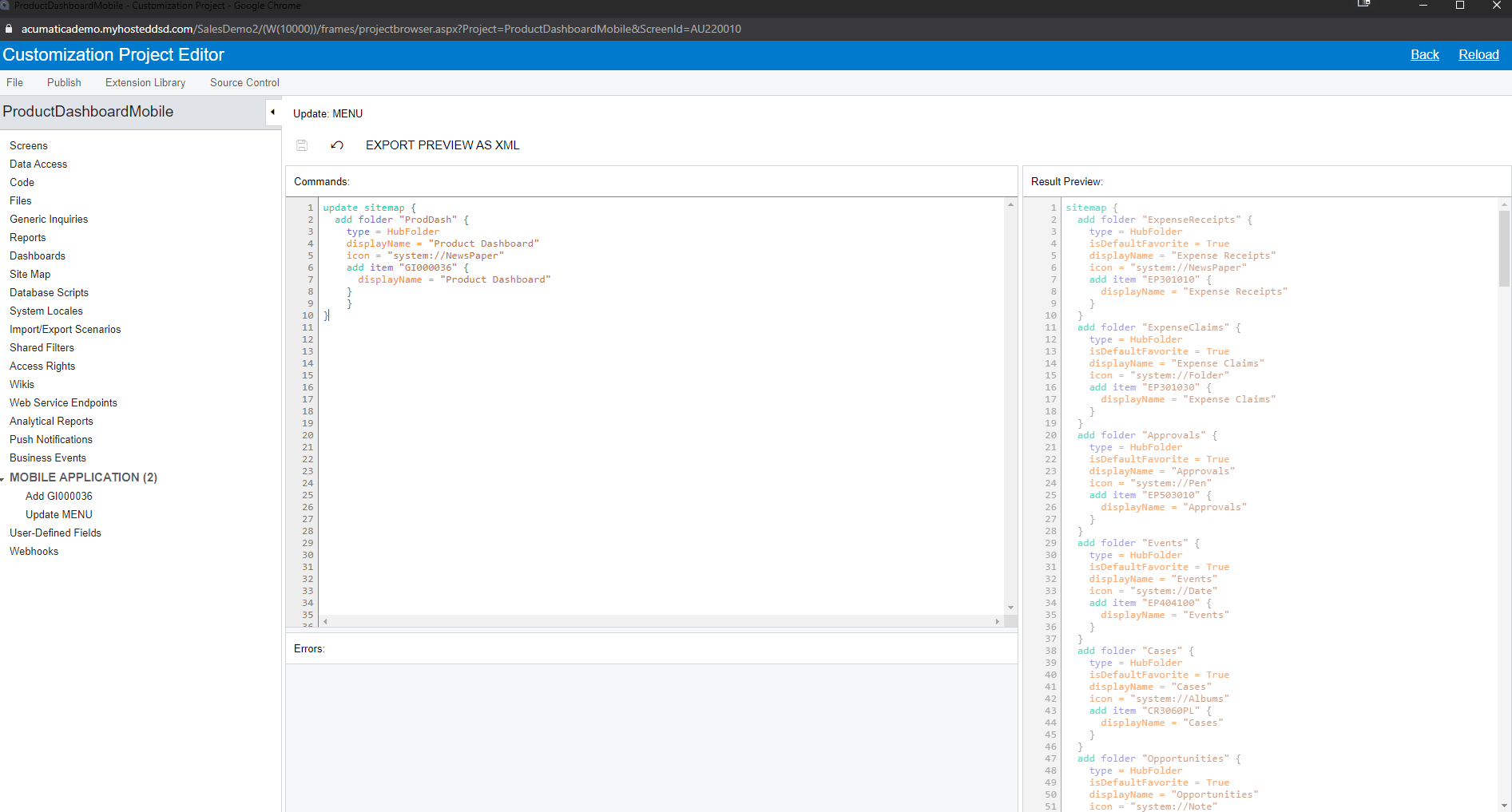
When done, hit save and publish the project.
Publishing and Reviewing Your Changes
After configuring the screen commands and updating the menu, save your work and publish the project.
Verifying the Product Dashboard
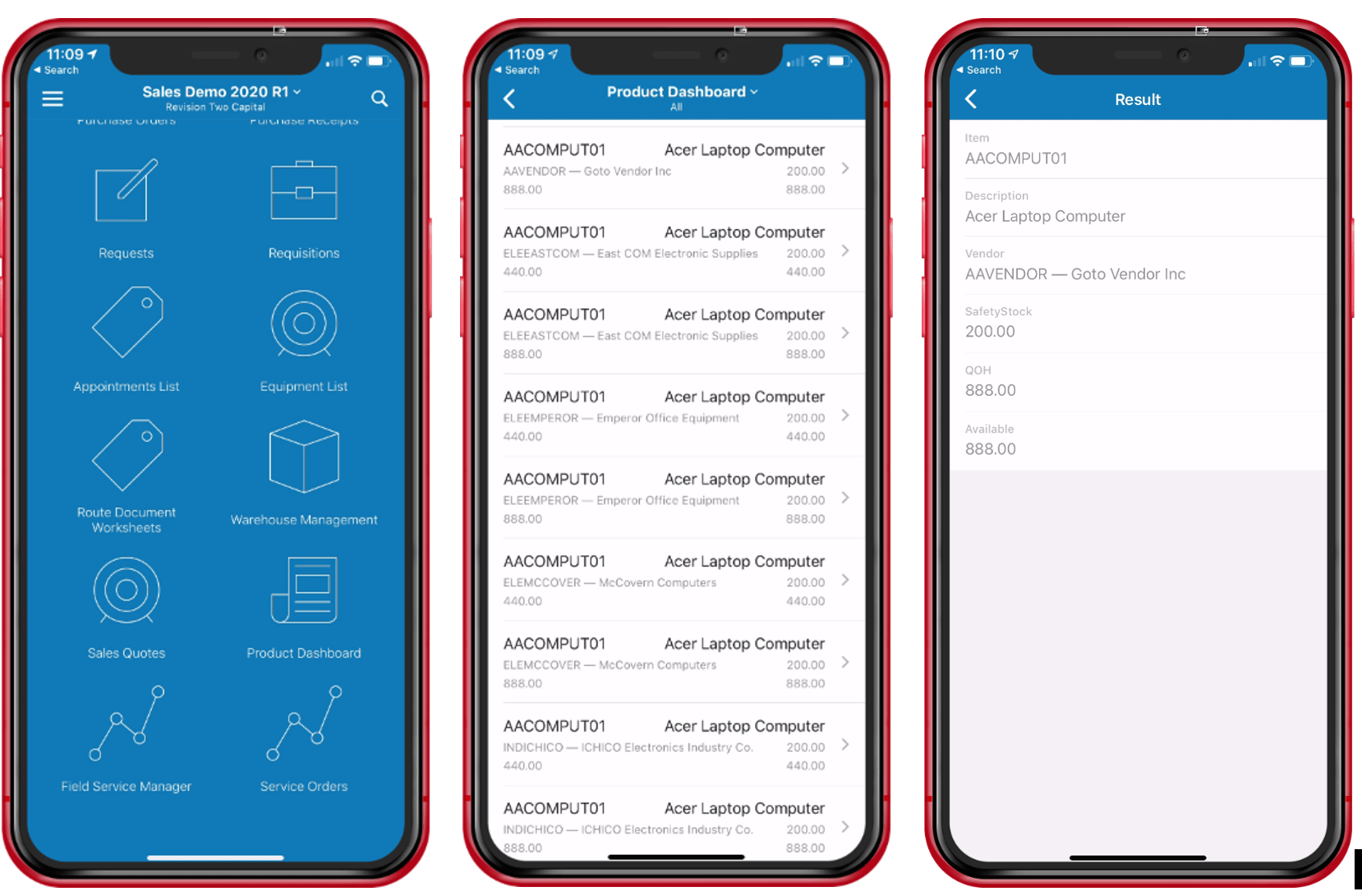
Now, when we look at our Mobile application, we will see all of our changes. The Product Dashboard icon now appears on our main menu with the new icon. When viewing our list, we can now see the inventory codes displayed and well as our other changes to the various fields.
Scalable Solutions for Mid-Size Businesses
Customizing your ERP solution should never be a massive drain on your IT resources. By leveraging the Acumatica Mobile Framework, you eliminate redundant software licenses and reduce operational costs associated with complex third-party mobile developments. Your organization gains a highly scalable platform that supports growth without increasing administrative overhead.
Whether you need to ensure seamless compliance reporting, manage inventory across multiple warehouses, or simply give your sales team accurate vendor codes, these simple mobile customizations provide the practical value your business requires.
Summary
We designed our technology around real-world needs, building a solution that adapts to new opportunities so you can take control of your future. In this guide, we demonstrated a simple, highly effective method for customizing mobile apps with very little code. Using the Customization Project Editor, we are able to modify the mobile interface without any programming for IOS or Android.
If you are eager to learn more about customizing the mobile interface to further reduce costs and boost process efficiency, we encourage you to explore the dedicated development courses available through the T400 Basic Customization of Mobile Application and T410 Advanced Customization of Mobile Application courses.